Work VPN Should Not Steal House Traffic
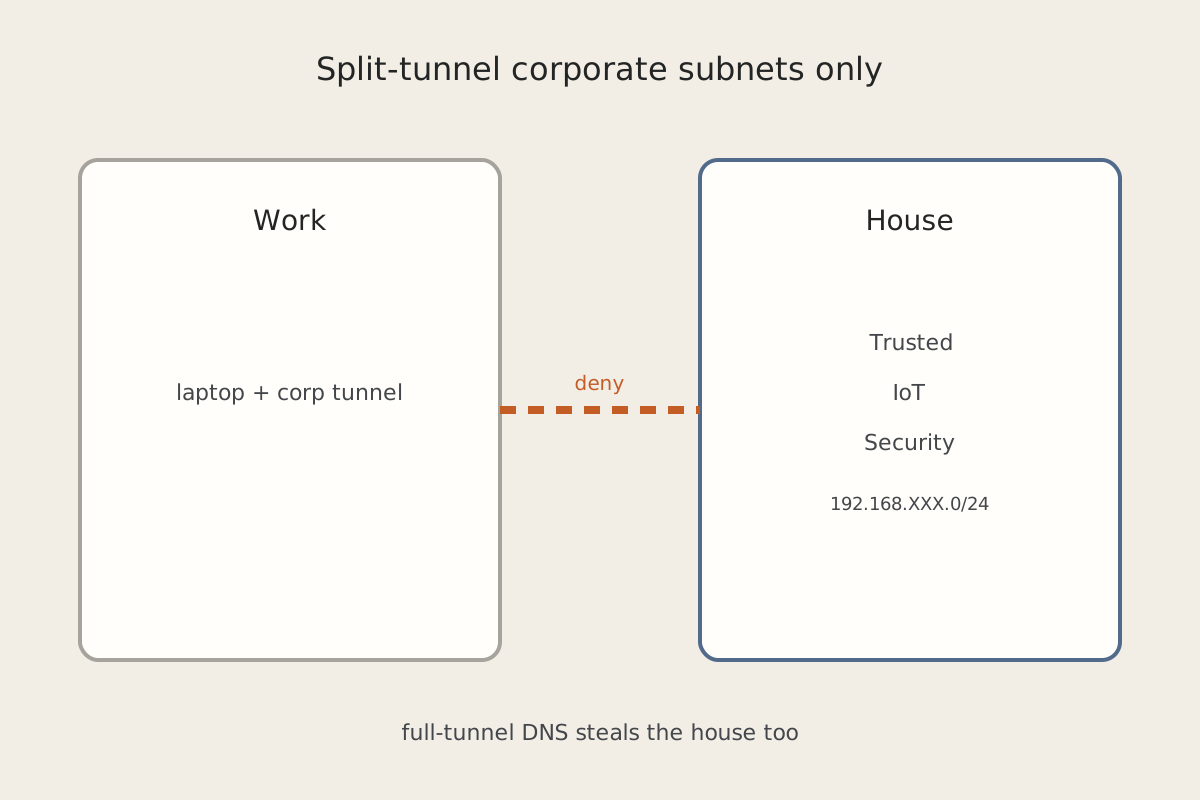
The work laptop joins the house, and suddenly printers, Home Assistant, and the IoT VLAN are “on the corporate network” — or the laptop cannot see anything at home except the work VPN. A work client does not belong in Trusted. Full-tunnel plus someone else’s DNS will steal the house.
Symptom
Plug in (or wake) the work machine on the home Wi-Fi. One of these shows up:
- Home hostnames die; every lookup goes to corporate DNS.
- The default route points at the work tunnel, so
192.168.XXX.0/24is slow, black-holed, or hairpinned through a data center. - The work OS can now ping cameras, a NAS, or HA on the home LAN — traffic that should never leave the Work zone.
- Your personal remote-access VPN fights the work client; only one of them “wins.” That fight is a cousin of VPN Connected, but Nothing on the IoT VLAN Answers.
Why it happens
Work VPN clients are doing what they were licensed to do: send your traffic to their network. If the laptop sits on Trusted, it already has a LAN path to IoT and Security. If the client then installs a full-tunnel default route or a DNS suffix that covers everything, the house is no longer yours for the length of the session.
This is not a vendor-specific trick. The product name on the work client does not matter. Treat the machine as hostile-adjacent: a managed endpoint that must not be on the same zone as phones, HA, or cameras.
Fix steps
-
Put work on its own VLAN and zone. SSID or wired port → Work network object. Not Trusted, not IoT, not Security. Guest is the wrong label too; you want a zone you can write policy against without kicking visitors.
-
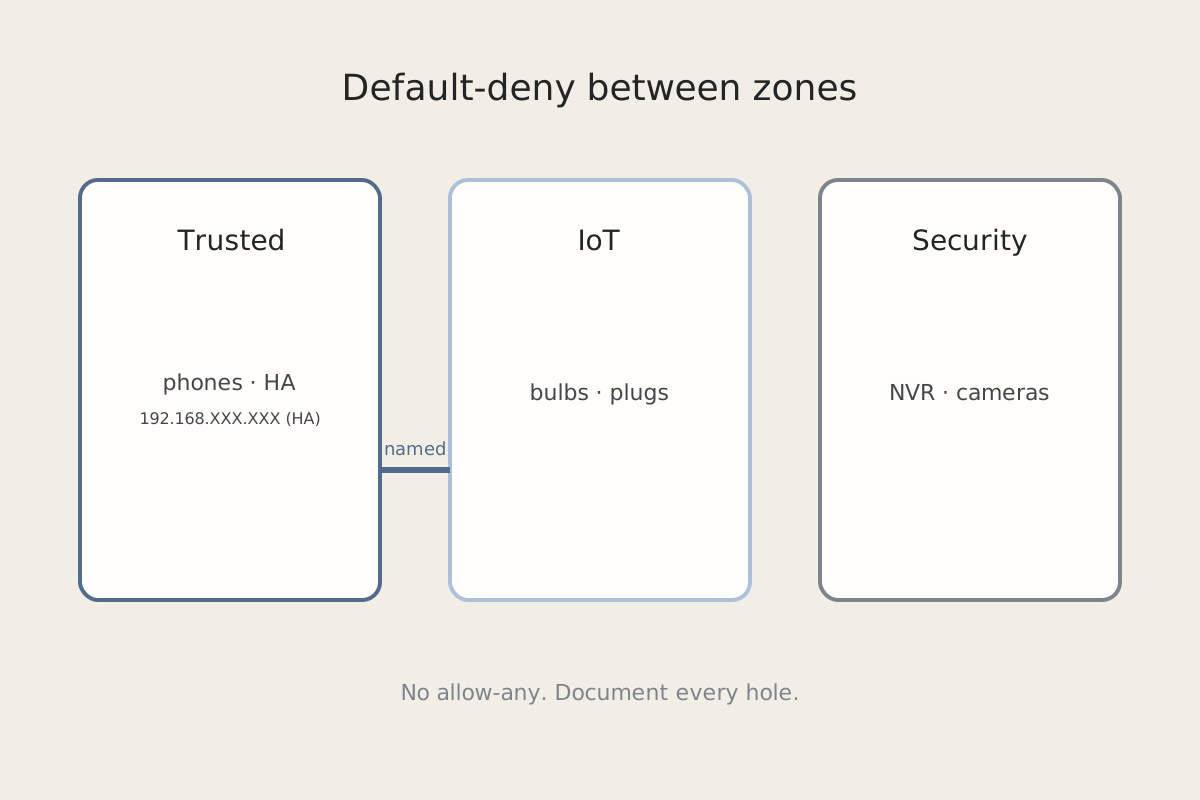
Block Work ↔ Trusted / IoT / Security except the one or two exceptions you can name (for example, a printer object, or a jump host you deliberately share). There should be no path from Work to HA, cameras, or the NAS. The same default-deny discipline as Default-Deny on the IoT VLAN applies here — write the exception, document it, do not “temporarily” allow any.
-
Split-tunnel the work client to corporate subnets only, if you are allowed to. The home default route and home DNS must stay on the house. If the employer forces full-tunnel, you cannot fix that in UniFi — you can only contain the laptop in the Work zone so the tunnel has nothing of yours to steal.
-
Watch DNS and the default route every time the client connects. On the work OS, check whether the default route moved and whether DNS is now a corporate resolver. On the home router, confirm Work cannot recurse to your internal names. A full-tunnel that “only” steals DNS will still break HA and printers by name while ping-by-IP looks fine.
-
Do not dual-home the machine on Trusted “when the VPN is off.” The VPN client will come back. Keep the NIC on Work. Use a personal device on Trusted for the house.
How to verify
- Work laptop associated to the Work SSID. It reaches the employer resources it is supposed to reach.
- From that laptop, ping to
192.168.XXX.XXX(HA) and to an IoT address fails unless you documented an exception. - From a Trusted phone, the house still works while the work VPN is up — your default route did not move.
- Corporate DNS is not answering queries for home names from Trusted devices.
- Packet rules show deny between Work and IoT/Security in both directions.
Related posts