Game-Day Lights That Don't Need a Schedule Check
Game day should look like game day without you opening a calendar. The lights come up a quarter hour before kickoff — including Friday night — and they stay off during byes, the offseason, and the hour after the clock hits 00:00. A Home Assistant scene snapshot is the wrong tool for WLED.
Symptom
You built a “team colors” scene. Sometimes the strips fire, sometimes they sit on the last preset, sometimes the scene says the WLED preset select is unknown or unavailable. Kickoff on Friday is missed because the automation only knows Sunday. A mid-week makeup game is missed. The lights still run Monday night after the game ended. You keep opening the league site “just to check.”
Why it happens
Home Assistant scene snapshots record whatever the entity looked like at save time. WLED’s preset select is often unknown / unavailable while the controller is asleep, off, or still booting. The scene stores that unusable state and “applies” it later. The strip never changes.
Schedules that hard-code “Sunday 10:00” miss Friday kickoffs, Thursday night, and bye weeks. They also cannot tell a 1:00 game from a 5:00 game. Odd kickoff days have to come from the schedule, not from a weekday helper you guessed in August.
This is football-only. Do not reuse the same job for every sport on the TV.
Fix steps
-
Set the WLED preset select directly. Do not restore a scene that captured it. In the automation action, call
select.select_option(or the WLED preset service you actually use) on the preset entity, then turn the light on. If you want a scene for brightness/other bulbs, leave the WLED preset out of that scene. For Hue rooms that should join the look, the original pairing notes are in How to Setup Philips Hue with Homekit and the roundup at Philips Hue Roundup. -
Verify, then retry. After the select, wait a beat and read the entity back. If it is still
unavailable, turn the WLED light on, wait for the controller to join, and set the preset again. One-shot scene restore will not do this. -
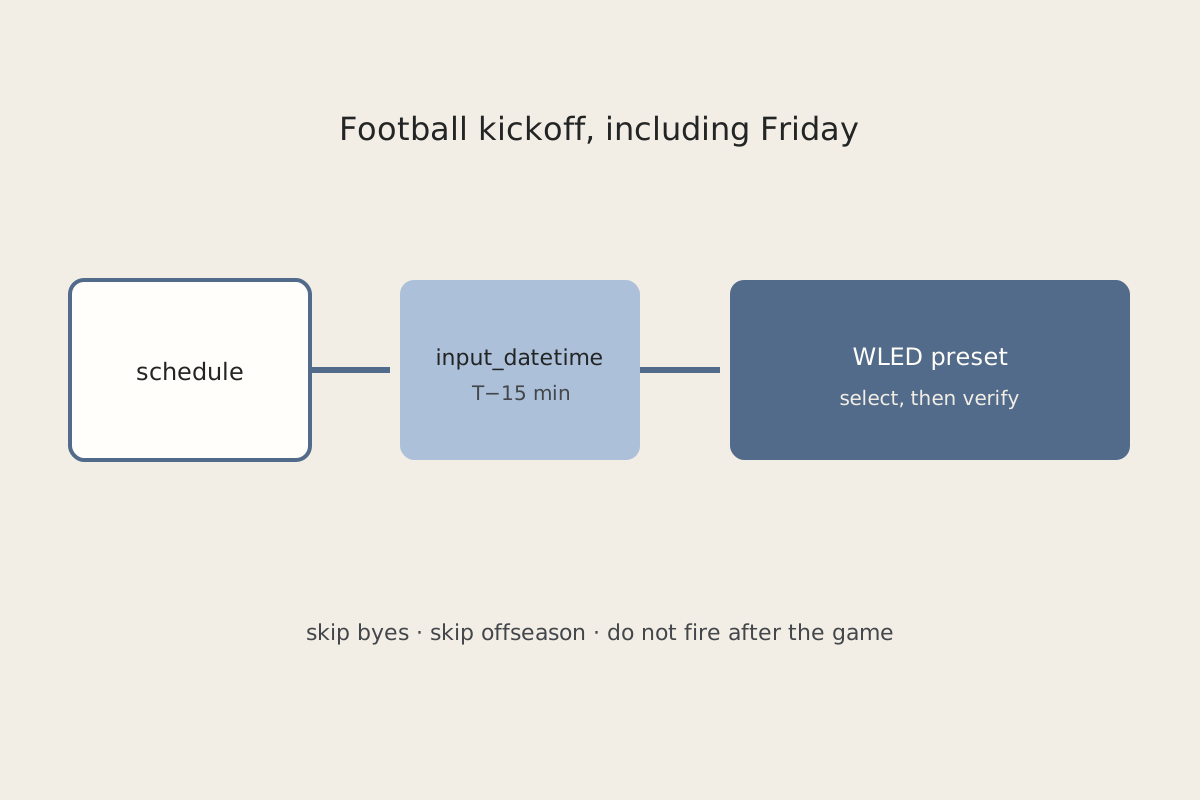
Drive kickoff from the schedule, offset by 15 minutes. Store the next kickoff in an
input_datetime(or a calendar event). Fire 15 minutes before that timestamp. College and pro football both kick on days that are not Sunday; Friday nights are real. Pull the date/time from the schedule source when it publishes, not from a “if weekday == Sunday” condition. -
Skip byes and the offseason. If the schedule row is a bye, a postponed game with no kickoff, or the season flag is off, the automation does not run. Do not keep a stale
input_datetimefrom last January. -
Do not fire after the game ends. Pair the start job with an end condition: a duration window from kickoff, a “game in progress” sensor if you have one, or an input boolean you clear when the clock is done. A 15-minute-before trigger with no end will happily restyle the room during the post-game show.
-
Keep the team generic. Name the helpers after your team, not a league you copied from someone else. The pattern is the same: schedule →
input_datetime→ preset select → verify.
How to verify
- Manually set the
input_datetimeto five minutes from now. The preset changes, the strips turn on, and the select entity reads the preset you asked for — notunknown. - Power-cycle the WLED controller, fire again, and confirm the retry path still lands on the preset.
- A Friday kickoff in the schedule fires; a bye week does not; a date after the season flag is off does not.
- Past the end window, a re-run of the automation does not slam the lights back to game colors.
- You did not open the league site to decide whether the lights should be on tonight.
If none of this runs because HA itself is down, ping is not the check — use Home Assistant Is Pingable and Completely Dead.
Related posts